
AOSU camera
Independent site whose links lead to the official AOSU products.
BATTERY CAMERA
WIRED CAMERAS
INDOOR CAMERAS
SOLAR CAMERAS
VIDEO DOORBELLS
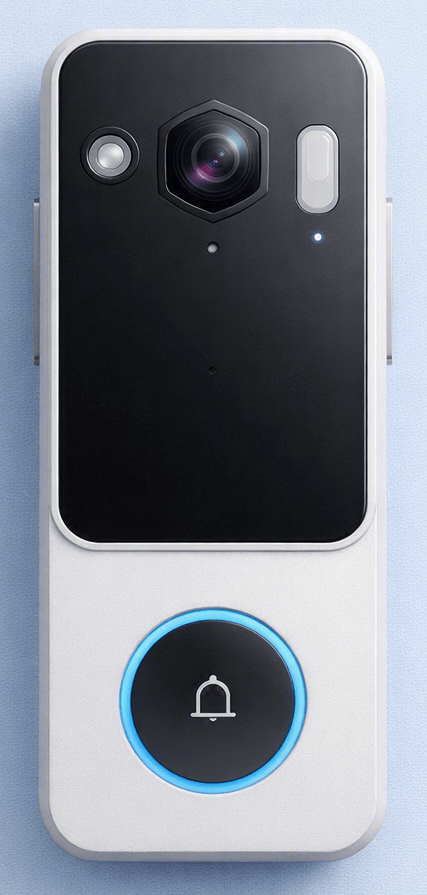
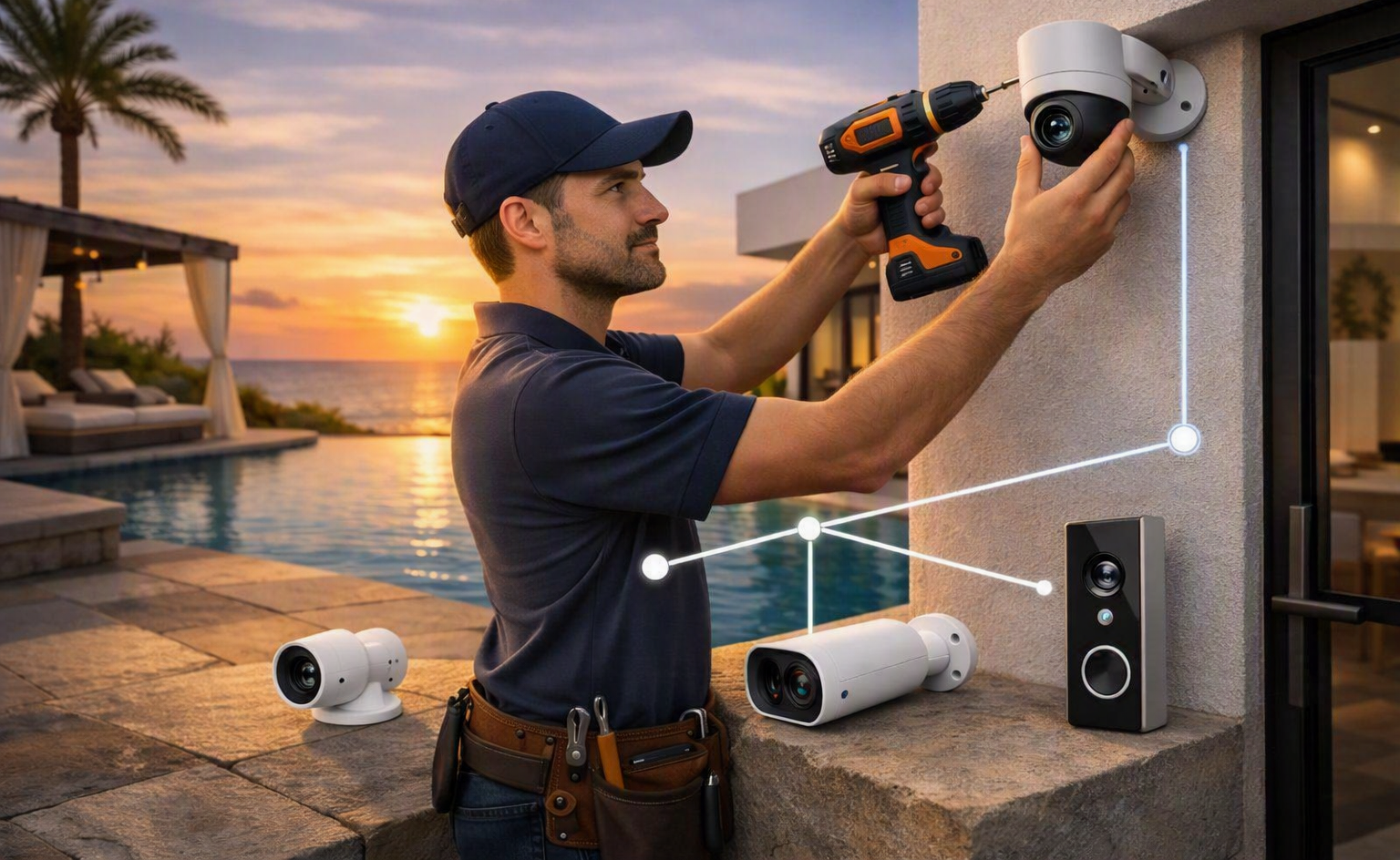
Solar, battery-powered, or wired: the installation process for an AOSU camera is similar across categories, but each one has its own constraints (placement, power, battery life). This guide covers physical installation and app setup, category by category, plus what does — and doesn’t — work without a Wi-Fi connection.
By Thomas Rivière, Product Analyst — Last updated: September 21, 2026
Before you start
Whatever the model, installation requires: a smartphone (iOS or Android) to install the AOSU app, a user account (email + password), and a 2.4 GHz Wi-Fi network — AOSU cameras do not connect to 5 GHz networks, a common point of confusion on dual-band routers that broadcast both frequencies under the same name. A microSD card (up to 128 or 256 GB depending on the model) is optional for local recording without a subscription.
Installing an AOSU solar camera
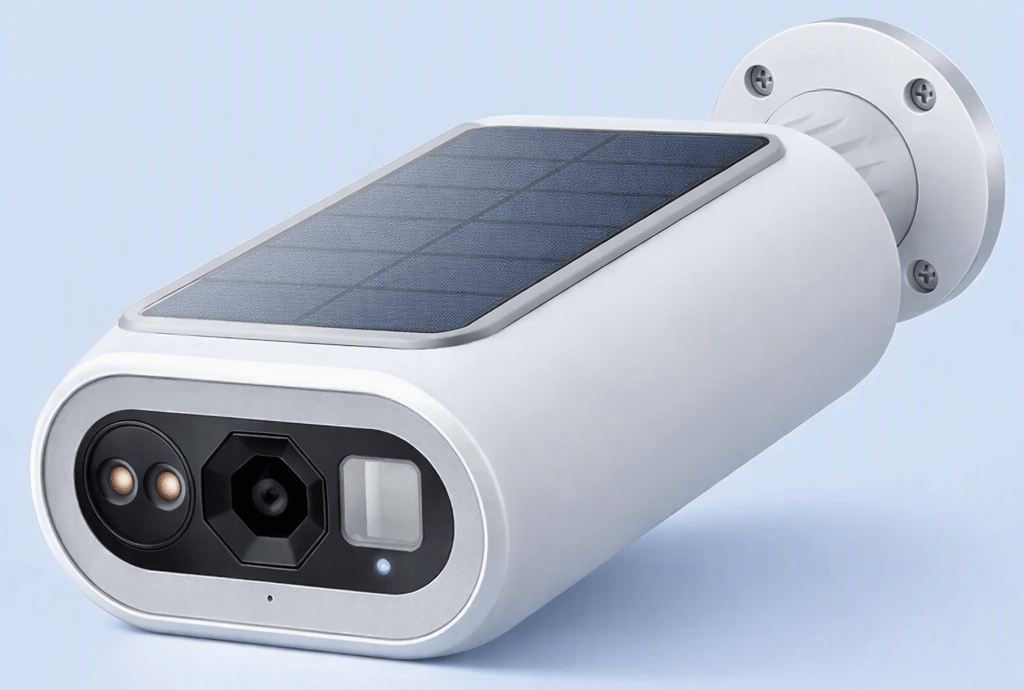
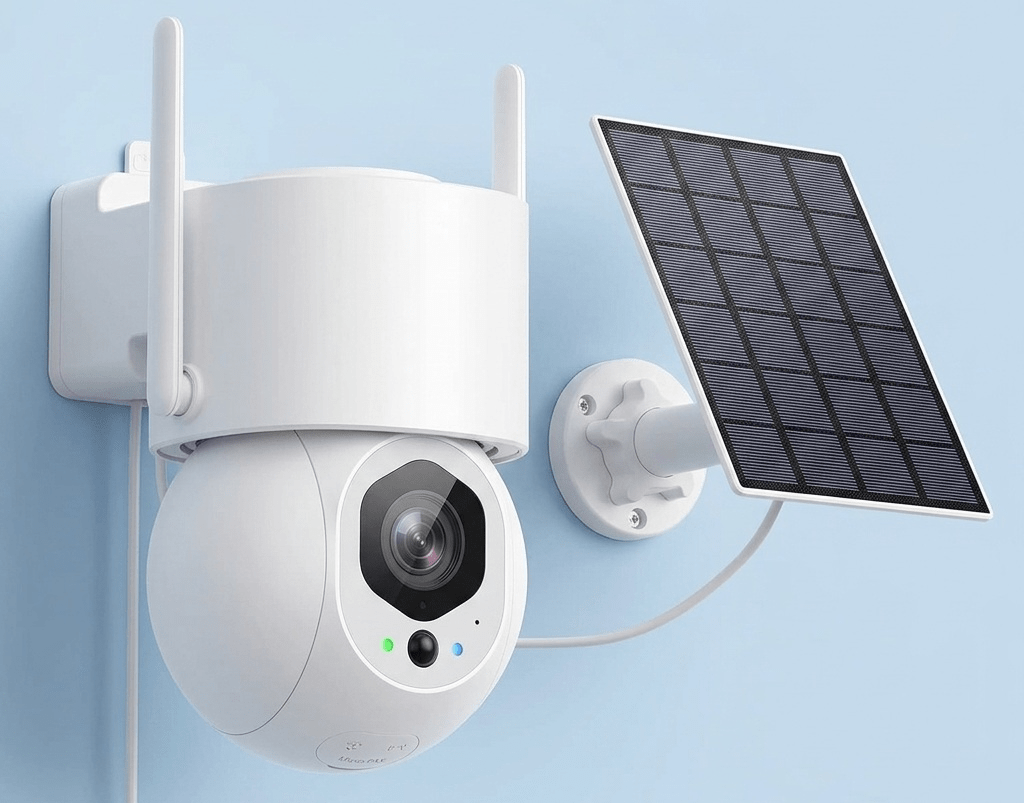
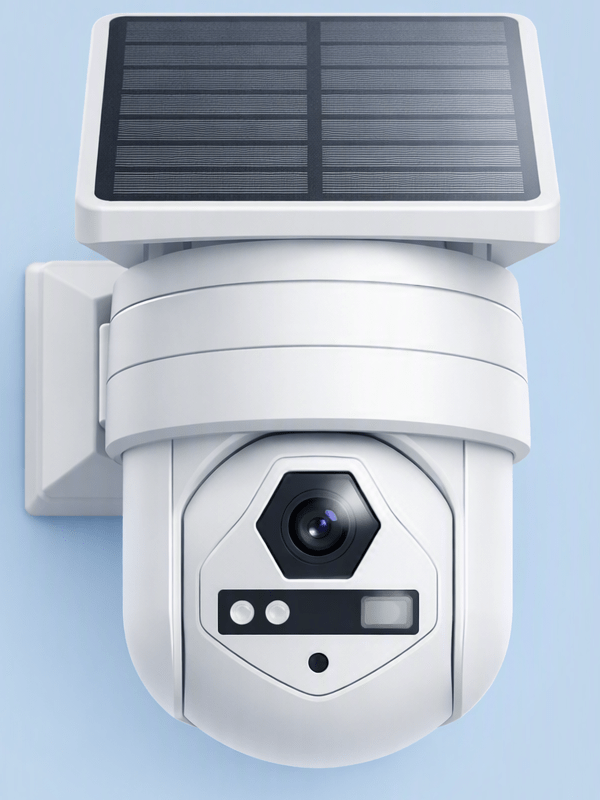
Choose a location that gets at least 3 hours of direct sunlight per day — this is the single biggest factor affecting battery life. On models with a built-in panel, the camera itself needs to be in direct sun. On models with a detachable solar panel (such as the SolarCam D1 Max), the camera and panel can be positioned independently — useful on a north- or east-facing wall, where the camera watches an area without itself getting sun; the panel can then go on the roof or an eave facing south.
Mount the camera using the supplied bracket, aim the lens at the area you want to monitor, then download the AOSU app to create your account and pair the camera to your Wi-Fi network. Insert a microSD card if you want local recording, and set up detection zones in the app to cut down on false alerts (moving vegetation, traffic on a public street).
Installing an AOSU battery camera
Battery-powered models (such as the Wireless Battery Cam Lite) need no drilling for cabling and no access to a power outlet, making them a good fit for rentals or temporary setups. Fully charge the battery before the first installation, mount the camera with the supplied bracket (adhesive or screws, depending on the mount), then pair it to your Wi-Fi network through the app. Expect 1 to 2 months of battery life per charge depending on how often events are detected and how often you check the live feed — heavy use (lots of activity, frequent live viewing) noticeably shortens this.
Installing an AOSU wired or floodlight camera
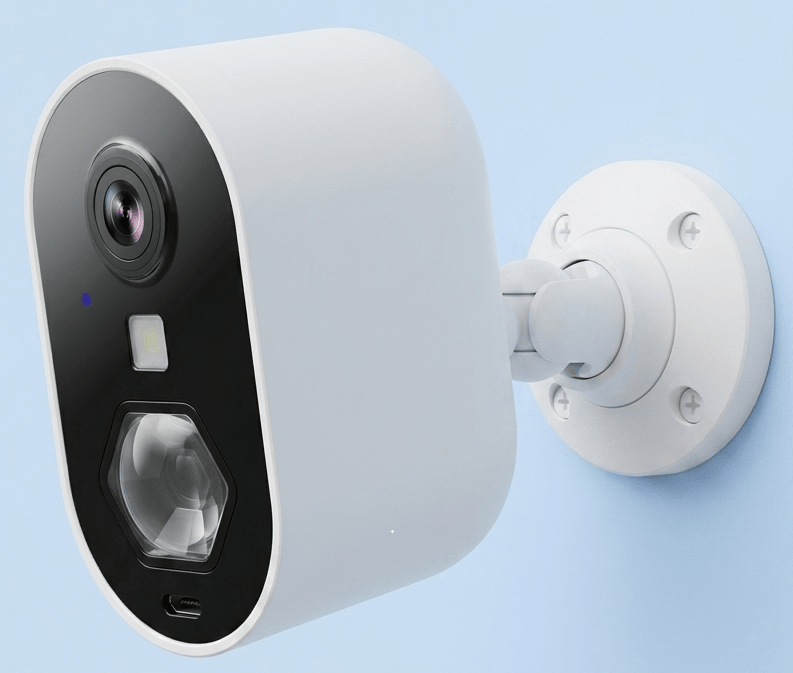
Wired models need access to a power source near the chosen location — check this before mounting the bracket, since unlike solar or battery models, repositioning later means running new cabling. In exchange, these models offer continuous 24/7 recording that doesn’t depend on sunlight or charging. Mount the camera, adjust the viewing angle, connect the power, then finish Wi-Fi pairing and app setup as with the other categories.
Setting up the AOSU app after installation
Once the camera is paired, the app lets you set custom detection zones (to ignore a busy street or a tree moving in the wind), adjust human and animal detection sensitivity, choose between local (microSD) and optional cloud storage, and link your account to Amazon Alexa or Google Assistant for voice control and viewing the feed on connected screens. The app also lets you manage several AOSU cameras from one account, with separate alerts for each device.
What works without a Wi-Fi connection
Local recording to a microSD card keeps working even during a Wi-Fi outage. However, an active connection is needed to receive real-time alerts, view the video feed remotely, or complete the camera’s initial setup. A camera that has never connected to Wi-Fi cannot be paired to the app.
Key takeaways
- 2.4 GHz Wi-Fi required — AOSU cameras don’t connect over 5 GHz.
- Solar: at least 3 hours of direct sun; detachable panel available on some models.
- Battery: 1 to 2 months of life per charge, no drilling or cabling.
- Wired: check power access before mounting the bracket.
- microSD recording keeps working without Wi-Fi; real-time alerts don’t.
Common installation problems
The camera won’t pair with the app
The most common cause is trying to connect to a 5 GHz Wi-Fi network — check your router settings for a separate 2.4 GHz network, or temporarily use a 2.4 GHz phone hotspot for the initial pairing.
Wi-Fi signal is weak or unstable
Move the camera closer to the router if possible, or use a Wi-Fi extender for installations further away (a gate, the back of a garden). A weak signal degrades the live feed quality and can delay alerts.
Too many notifications, or irrelevant alerts
Narrow the active detection zone in the app to exclude vegetation or a busy street or sidewalk, and adjust human/animal detection sensitivity.
FAQ – Installing AOSU cameras
How long does it take to install an AOSU camera?
Expect a few minutes for mounting and Wi-Fi pairing through the app. The time mostly depends on preparing the location (drilling for a bracket, access to power for wired models).
Do AOSU cameras work without a Wi-Fi connection?
Local recording to a microSD card keeps working without a Wi-Fi connection. However, an active Wi-Fi connection is needed to receive real-time alerts, view the video feed remotely from the app, or complete the camera’s initial setup.
See also
- AOSU: connected security cameras — the full range
- AOSU Manual: LED, Reset, Wi-Fi Quick Reference
- Comparison: Which AOSU Solar Camera to Choose?
- AOSU Battery Camera: Complete Guide and Comparison
- AOSU Wired Cameras: Complete Guide and Comparison
- AOSU Indoor Cameras: Connected Security for Your Entire Home
- AOSU Video Doorbells: Better Security at Your Front Door