
AOSU camera
Independent site whose links lead to the official AOSU products.
BATTERY CAMERA
WIRED CAMERAS
INDOOR CAMERAS
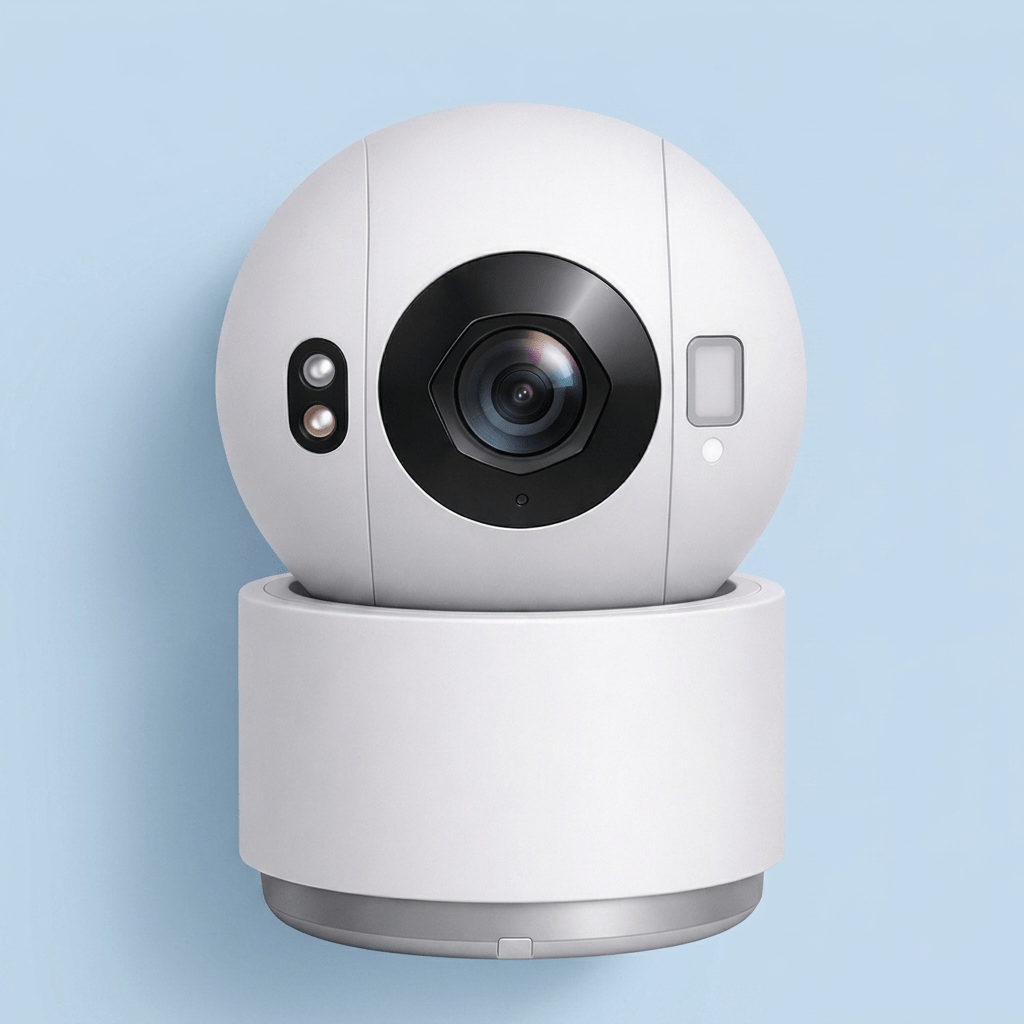
SOLAR CAMERAS
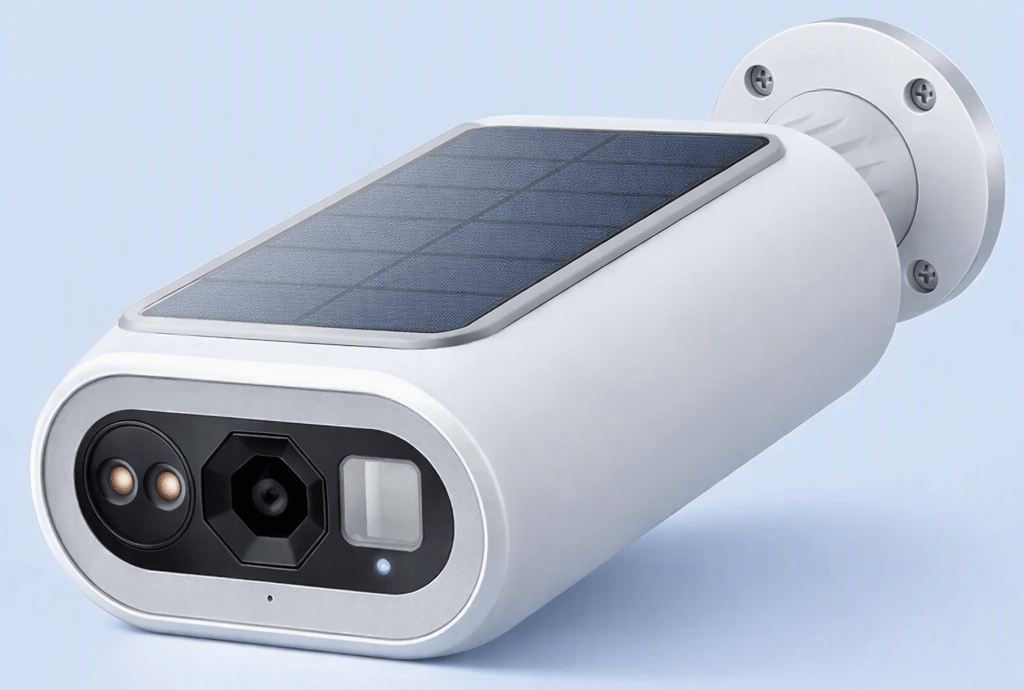
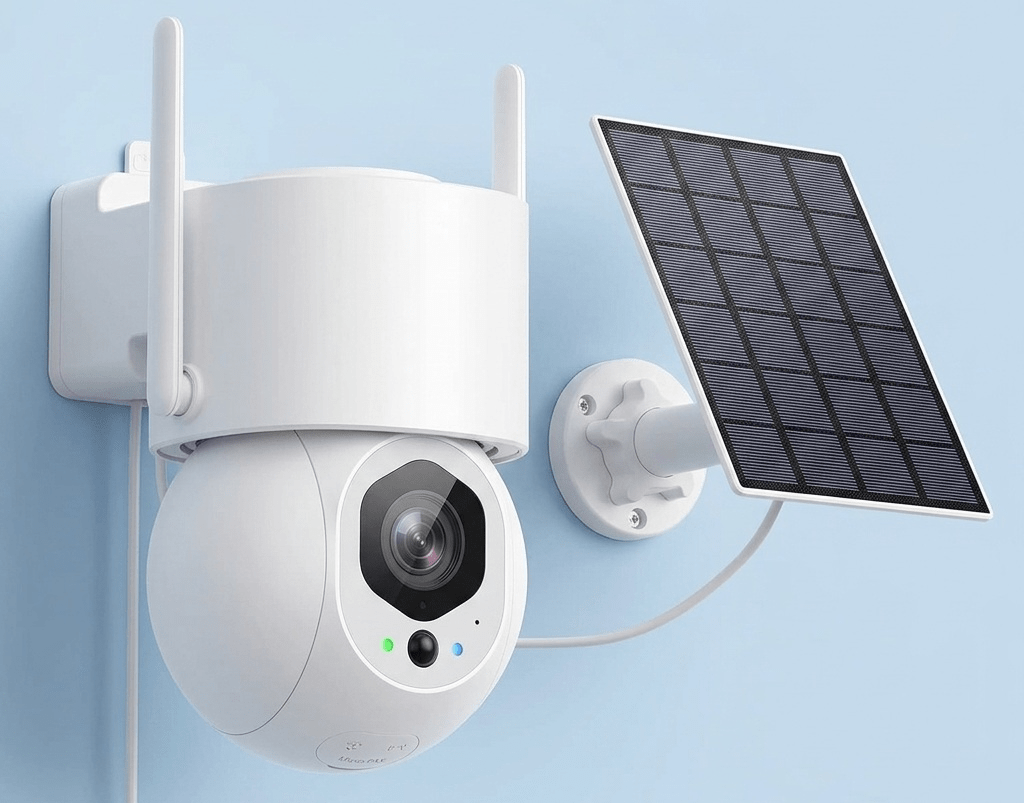
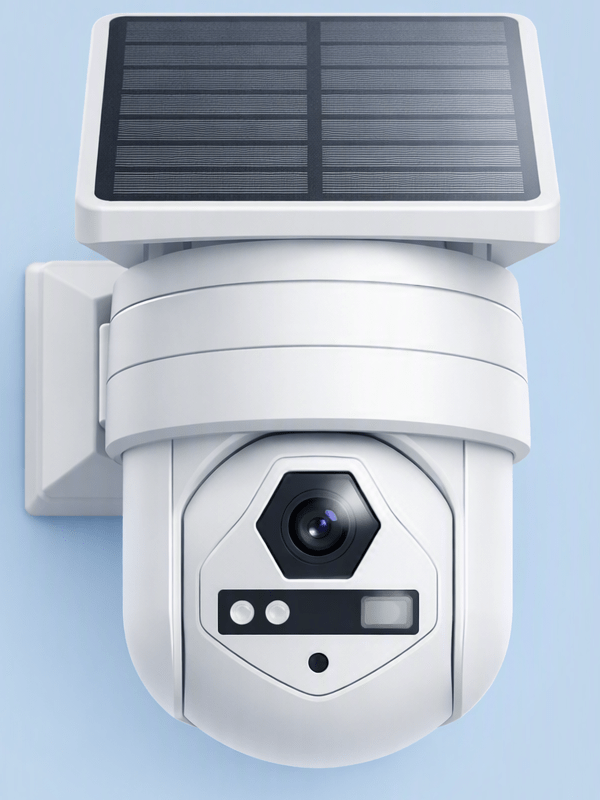
VIDEO DOORBELLS
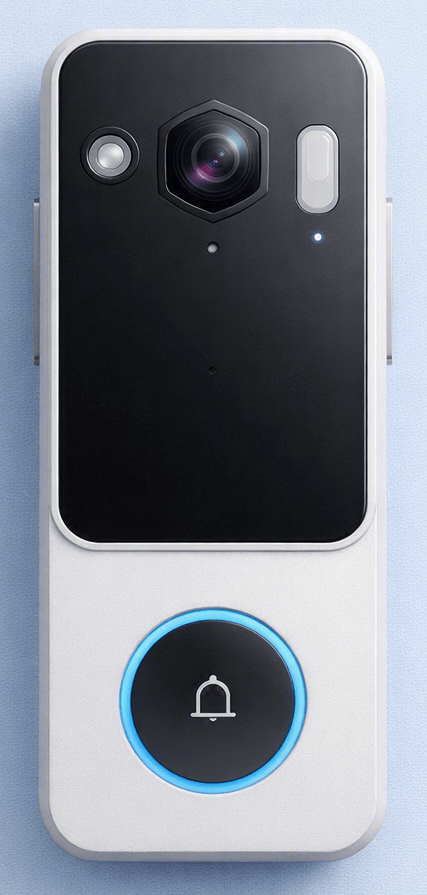
Looking for the printed manual for your AOSU camera? It doesn’t exist: like most connected camera brands, AOSU runs entirely through its mobile app, with no printed booklet. This page gathers answers to the questions a real manual would normally cover: LED indicator meaning, changing Wi-Fi networks, factory reset, firmware updates, and account recovery.
By Thomas Rivière, Product Analyst — Last updated: September 21, 2026
Why AOSU doesn’t have a printed manual
AOSU cameras are designed to be set up and controlled entirely from the mobile app: pairing, detection settings, storage, notifications. A printed booklet would become outdated the moment the app is updated — that’s why these settings are documented directly in the app rather than on paper. This page works as a quick reference for the questions that come up most often once the camera is installed. For first-time setup, see our complete installation and setup guide.
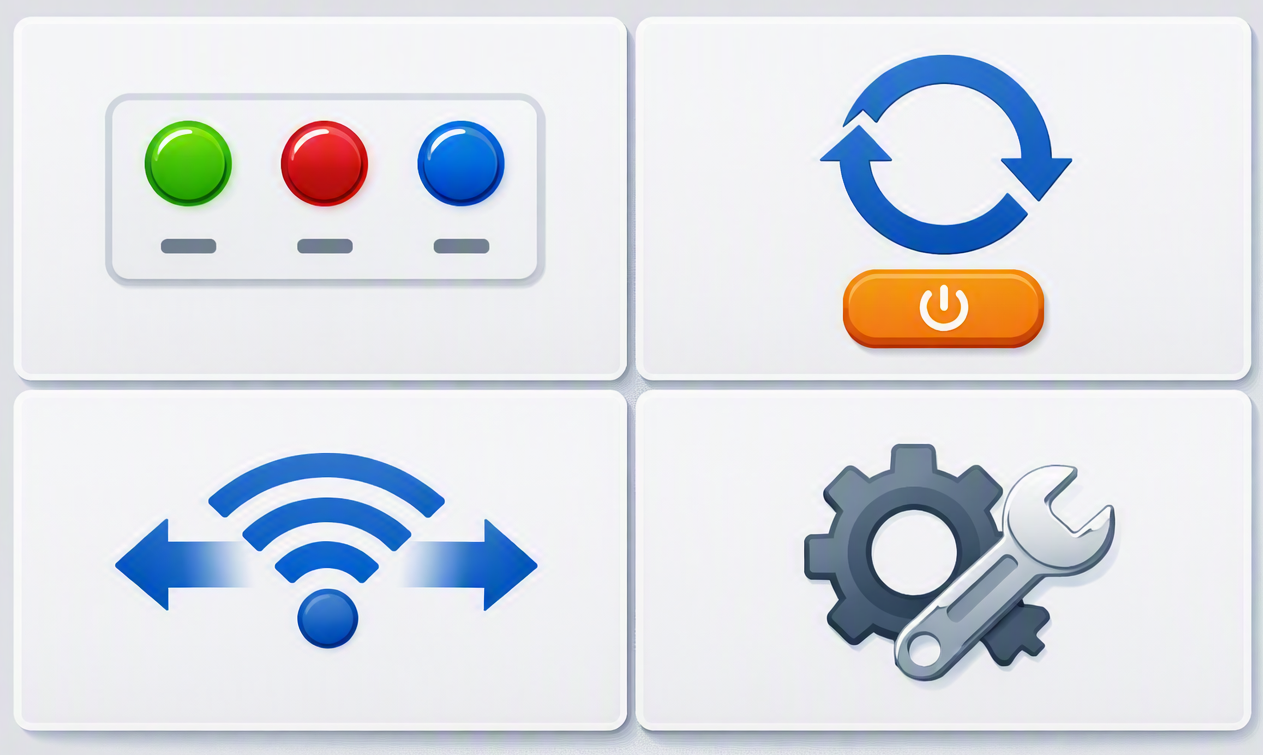
LED indicator meaning
Generally across the AOSU range, the status light indicates the camera’s connection state. The exact color can vary between models — check your camera’s specific features page for the precise detail.
| Light state | Meaning |
|---|---|
| Solid | Camera powered on and connected normally |
| Blinking | Pairing or searching for a network (often after pressing the SYNC button) |
| Off | Indicator manually disabled in the app, or camera powered off |
The light can be turned off to make the camera less noticeable at night: in the app, open the camera in question, go to its settings, then disable the LED indicator option. The change takes effect immediately, no restart needed — but it also removes the visible deterrent effect and makes visual troubleshooting harder if a connection issue comes up.
Changing your camera’s Wi-Fi network
If you change your internet router or Wi-Fi password, the camera won’t reconnect to the new network automatically:
- Open the AOSU app and select the camera in question.
- Go to its settings, then the Wi-Fi reconnection option.
- Choose the new network from the list and enter its password.
- Wait for the switch to complete: the camera typically shows as offline in the app for about a minute, which is normal.
Resetting your AOSU camera
The reset button is usually located near the camera’s charging or power port, sometimes recessed and accessible with a pin. The exact hold duration varies by model — hold the button down until you hear a beep or see the LED change, confirming the reset is in progress.
Before you reset: a full reset erases the network pairing as well as custom detection zones and notification settings. The camera then needs to be paired again from the app, as during first-time installation.
Updating the firmware
Firmware is the internal software that runs the camera; AOSU occasionally releases updates to fix bugs or add features. These updates are generally not automatic: check for availability directly in the camera’s settings within the app, under the device’s dedicated section.
Forgotten password or AOSU account
If you can no longer log into the app, use the password recovery option on the login screen: a reset link is sent to the email address linked to your account. This process doesn’t reset the cameras themselves, only access to your account.
Finding your model’s exact specifications
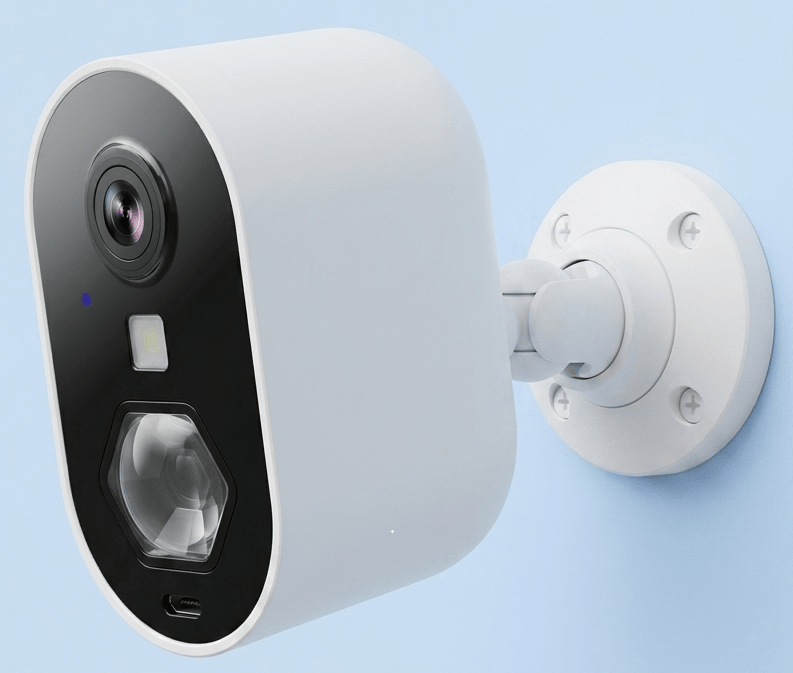
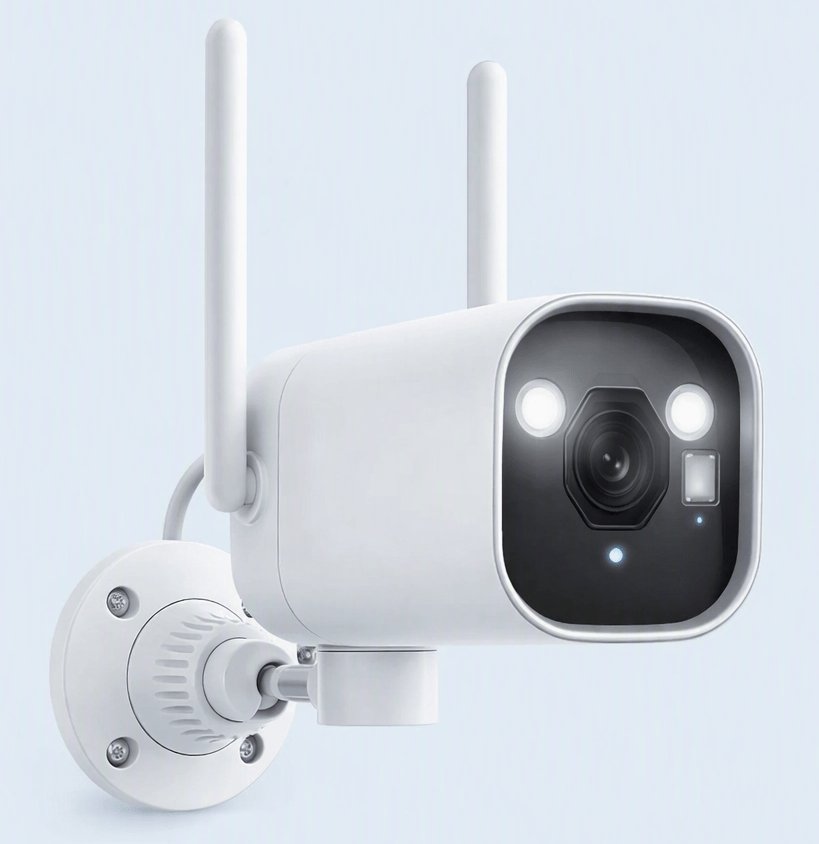
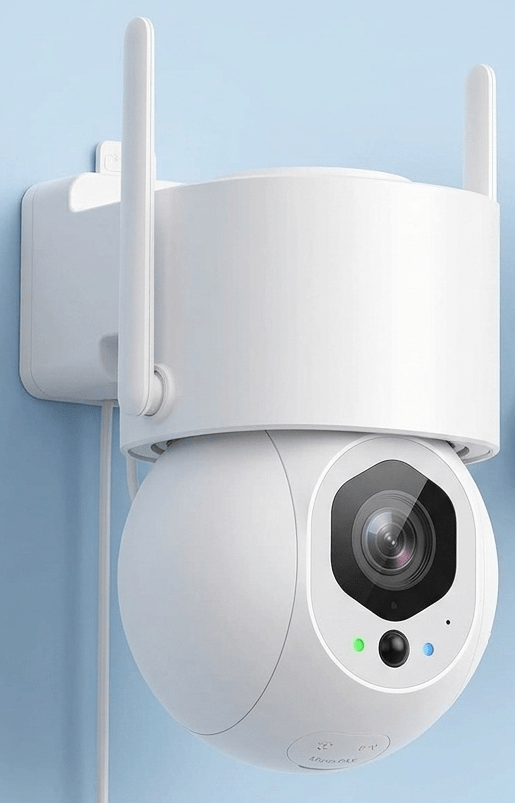
Some details (exact LED color, precise reset button location, maximum microSD capacity) vary by camera category. Check your category’s guide for model-by-model detail:
Quick reference
| Need | Where to do it |
|---|---|
| Change Wi-Fi network | App → Camera settings → Wi-Fi reconnection |
| Turn off LED indicator | App → Camera settings → LED indicator |
| Reset the camera | Physical button near the charging/power port |
| Update firmware | App → Camera settings → Update |
| Recover your account | Login screen → Forgot password |
FAQ – AOSU manual and quick reference
Can I turn off the LED indicator on my AOSU camera?
Yes, from the camera’s settings in the AOSU app, by disabling the LED indicator option. The change is immediate, no restart needed.
My internet router changed, what should I do?
Use the Wi-Fi reconnection option in the camera’s settings to connect it to the new network. The camera will briefly show as offline during the switch.
Does resetting erase my settings?
Yes, a full reset erases the network pairing as well as custom detection zones and notifications. The camera then needs to be paired again from the app.
How do I know if a firmware update is available?
Updates are generally not automatic: check for availability directly in the camera’s settings in the AOSU app.